Initial Version
In this section we walk through creating the Git repository and making our first commit.
Configuration (config)
Configure user name and email address for commit message (replacing EMAIL with your email address and FIRST LAST with your full name).
[tyson@l1.nibi ~]$ git config --global user.email 'EMAIL'
[tyson@l1.nibi ~]$ git config --global user.name 'FIRST LAST'
Unless you are comfortable with vim, You will want to change the default editor to nano too
[tyson@l1.nibi ~]$ git config --global core.editor 'vim'`
Look in ~/.gitconfig
Getting the Data
The following diagram depicts where we will be at the end of this section

where the folder/directory/working tree is the files that are in our current directory.
To get here, we download the initial scripts from the The Shell course and unzip them
[tyson@l1.nibi ~]$ wget https://staff.sharcnet.ca/tyson/flights-commands.zip
[tyson@l1.nibi ~]$ unzip flights-commands.zip
Likewise for the data
[tyson@l1.nibi ~]$ wget https://staff.sharcnet.ca/tyson/flights.zip
[tyson@l1.nibi ~]$ unzip flights.zip
Creating the Repositary (init)
At the end of this section, we will have initialized the get repository. This will add the git internals
and the init and status commands to our diagram

where the staging/index is a stored snapshot of the files that is to become the next version. The object database/store is the git database where the current and previous versions are stored.
Git command are the first arguement to the git command. To create a new Git repository we run
[tyson@l1.nibi ~]$ git init
This creates and initializes a .git directory. This directory is where everything git resides. Everything that is
not in the .git directory is referred to as the working tree.
The Git command we will probably use the most is
[tyson@l1.nibi ~]$ git status
On branch master

No commits yet

Untracked files:
  (use "git add <file>..." to include in what will be committed)
	flights-commands.zip
	flights.zip
	flights/
...
It gives us a summary of the current state of our repository. For now just note that all our files are listed a untracked. This means they have not yet been made part of the git repository.
Exercise
What happens if you rerun the config commands without
--global? You can usefind . -mmin -1to find all files/folders that have changed in the last minute.How do you de-init a repository (remove the git stuff but keep your files)?
Staging First Version (add/rm)
In this section we will stage our first commit in the staging area. This will add the add and rm commands to
our diagram
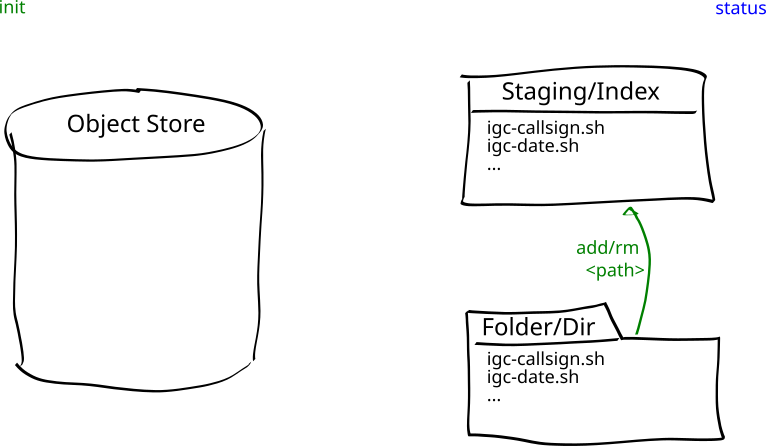
As the status command says, to stage files for the next commit we use the add command
[tyson@l1.nibi ~]$ git add *
This copies version of the file in the working tree into the Git index. Running the status command now shows
the scripts as going to be committed.
[tyson@l1.nibi ~]$ git status
On branch master

No commits yet

Changes to be committed:
  (use "git rm --cached <file>..." to unstage)
	new file:   flights-commands.zip
	new file:   flights.zip
	new file:   flights/0144f5b1.igc
...
Lets not add the zip files or the flight directory. To remove files we use the rm command
[tyson@l1.nibi ~]$ git rm *.zip flights
error: the following files have changes staged in the index:
    flights-commands.zip
    flights.zip
(use --cached to keep the file, or -f to force removal)
As the files have stagged changes, Git asks if you want to remove just the staged changes with --cached or both the staged
changes and the files from the working tree with --force. We want to keep our working tree files, so we specify --cached
[tyson@l1.nibi ~]$ git rm --cached *.zip flights
fatal: not removing 'flights' recursively without -r
As with many unix commands, we have to specify a recursive option -r to have specifying a directory work on the
directory contents
[tyson@l1.nibi ~]$ git rm --cached -r *.zip flights
rm 'flights-commands.zip'
rm 'flights.zip'
rm 'flights/0144f5b1.igc'
...
Now the status command shows we have stagged just our scripts
[tyson@l1.nibi ~]$ git status
On branch master

No commits yet

Changes to be committed:
  (use "git rm --cached <file>..." to unstage)
	new file:   igc-callsign.sh
	new file:   igc-date.sh
	new file:   igc-end.sh
...
Commiting First Velsion (commit)
In this section we will commit our stagged commit. This will add the commit commands to our diagram
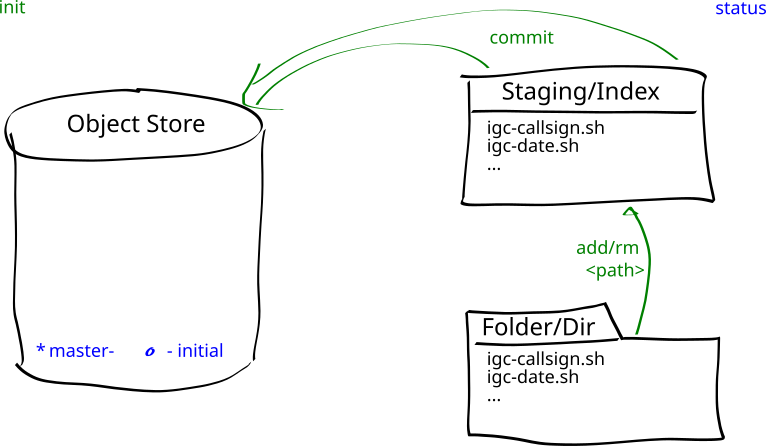
Once you have everything you want in the next version stagged, the commit command is used to record it
[tyson@l1.nibi ~]$ git commit
This pops up an editor so you can write a commit message. A good commit message contains
a single summary line saying what the commit is for, and
one or more paragraphs noting anything not obvious.
Prokects accumutale a lot of commits over their lifetime. A good commit message lets someone incrementally decide if they are interested in it. From the summary line (which is all that many programs display by default), they can decide if they want to read the deatails. From the details they can see if they want to read the actual commit and be informed of anything non-obvious going on in the commit.
With this in mind, an example of a terrible commit message is Incremental updates. It is completely generic and forces people to look at the commit to figure out what is going on. A slight better one might be Change foo to foobar. It is slight better as it says what was done, but it still isn’t great as it doesn’t say why it was done. An example of a good message would be Rename foo to foobar in prep for foobaz with possibly a followup paragraph providing more details about the foo refactoring.
In our case, lets go with_Initial version of IGC commands for The Shell course_. Writing this in the editor and saving gives
[tyson@l1.nibi ~]$ git commit
[master (root-commit) 7a8b418] Initial version of IGC commands from The Shell course
 5 files changed, 5 insertions(+)
 create mode 100644 igc-callsign.sh
 create mode 100644 igc-date.sh
 create mode 100644 igc-end.sh
 ...
The -m option can be used to specify the commit message instead of having to use the editor.
Now status no longer has anything to say about the script files as their latest version is safely stored
[tyson@l1.nibi ~]$ git status
On branch master
Untracked files:
  (use "git add <file>..." to include in what will be committed)
	flights-commands.zip
	flights.zip
	flights/

nothing added to commit but untracked files present (use "git add" to track)